
Adding users in LEADSORBIT allows you to give team members access to your account while controlling what they can view and manage. You can add new users, edit their information and permissions, or remove users who no longer need access.
Add a New User
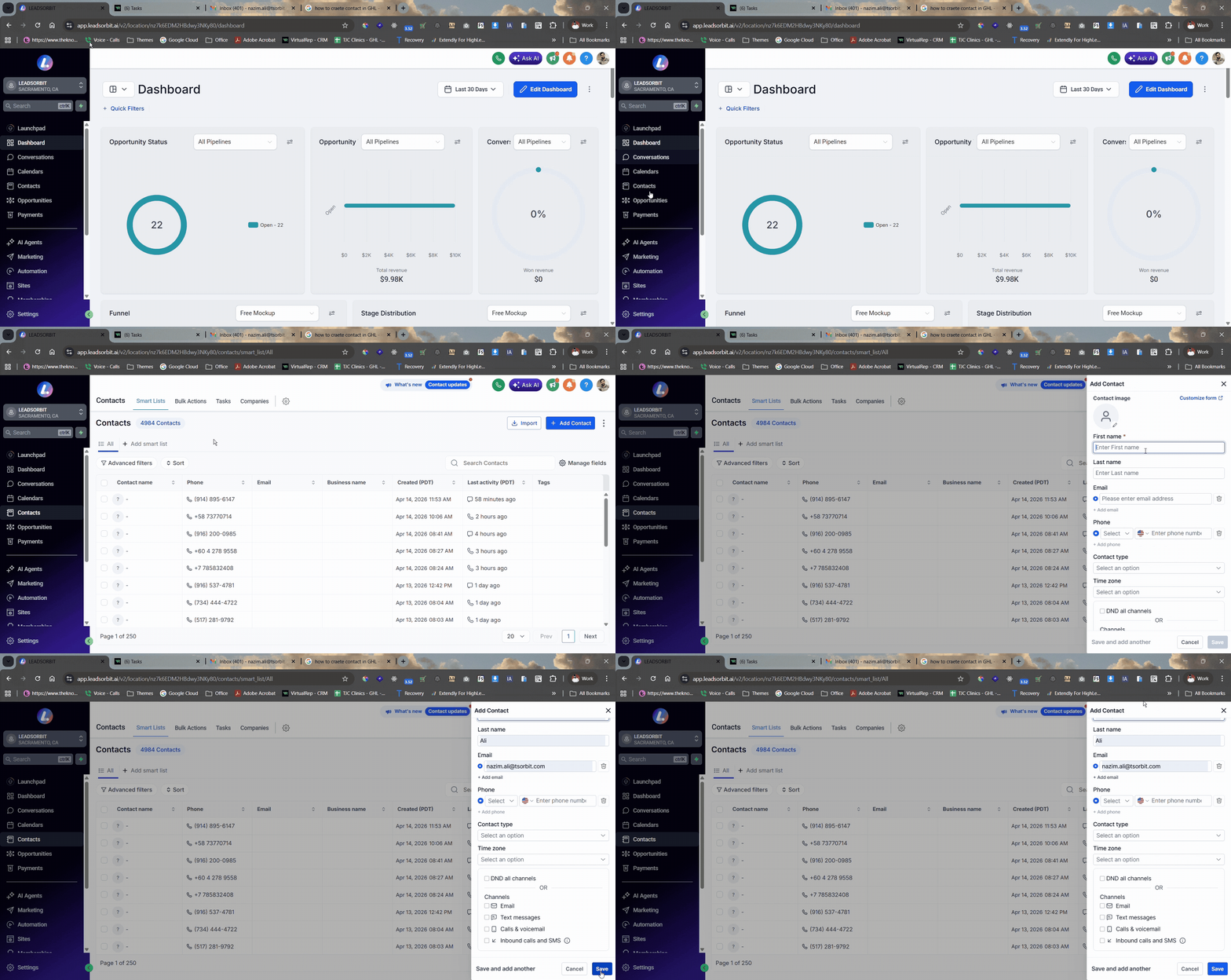
Follow these steps to add a new user in LEADSORBIT.
- Navigate to Settings → My Staff.
- Click Add User.
- Enter the user's information, including their name, email address, and phone number.
- Select the user's role and configure their permissions.
- Click Save.
- Ask the user to accept the invitation sent to their email before signing in.
Edit a User
You can update a user's information, role, or permissions at any time.
- Navigate to Settings → My Staff.
- Search and select the user you want to edit.
- Update the user's information, role, or permissions as needed.
- Click Save to apply your changes.
Remove a User
If a user no longer needs access to LEADSORBIT, you can remove them from your account.
- Navigate to Settings → My Staff.
- Search and select the user you want to remove.
- Click the Delete icon.
- Confirm the action when prompted.
Best Practices
- Assign users only the permissions they need to perform their work.
- Review user access regularly to keep your account secure.
- Update user roles and permissions when responsibilities change.
- Remove users who no longer need access to LEADSORBIT.
- Ask new users to accept their invitation as soon as they receive it.
Common Issues
- Invitation email not received: Ask the user to check their spam or junk folder and confirm the email address was entered correctly.
- Unable to add a new user: Verify that you have permission to manage users in LEADSORBIT.
- User cannot access certain features: Review the user's role and permissions to make sure they have access to the required features.
- Unable to remove a user: Confirm that the user is not restricted from being removed and that you have permission to manage users.